After months of hard work, I am proud to annouce the release of Video.js 6.0 🎉!
This release is pretty exciting. It greatly improves the accessibility of the controls and components, and we are committed to making Video.js the most accessible player we can. Video.js also provides some shiny, and awesome, new features for developers in middleware and advanced plugins. Video.js 6.0 is also the first release where Flash is unbundled from core -- though, it is still available as a plugin, if necessary.
Today's release is a pre-release and will stay that way for about a week or two before being promoted to latest. Just to make sure that any last bugs, if any, are ironed out.
Things you should know
Most things have not changed between 5.x and 6.x. In fact, in most of our work in plugins we maintain, the majority of the work was to use new methods and fallback to old methods because they were logging deprecation warnings. Those plugins would've continued working otherwise.
However, there are definitely some changes that are breaking and would require action on your part. For example, if you require Flash, that's something that would now need to be included manually.
One of the other big changes is that source selection is now asynchronous. This was necessary for middleware support and most likely won't affect users if they are waiting for the player to be ready before interacting with the player.
These are written up on our wiki. We'll make sure to update it if there's anything that we missed.
Feedback Wanted
If you are using Video.js and have comments or questions, please drop by on Slack. If you find a bug, please open an issue on GitHub, preferably with a reduced test case.
5.x Support
We're still going to be supporting the Video.js 5.x release line. This will mostly be bug fixes but features will be considered on a case-by-case basis.
If IE8 support is still required, it is probably best to stick to 5.x.
npm tags
Once Video.js 6 is promoted to latest, it'll take over the next and latest tags on npm. The 5.x release line will then be given its own set of tags: latest-5 and next-5.
Code of Condunct
We strive to be open and inclusive and so we have adopted a Code of Conduct, based on Contributor Covenant that applies to all Video.js projects.
Conclusion
We are super excited for this release! Please take it for a spin from next tag on npm or from the CDN. And please come chat with us on Slack.
Middleware is one of the cool new features that is coming to Video.js in version 6.0
With middleware, you are now able to interact with and change how the player and the tech talk to each other. The tech is Video.js's abstraction from the player, separating the player API from the playback technology. With techs, we can plug things like a Flash fallback or a Youtube embed into Video.js without changing the external API or the look-and-feel of the player.
Video.js middleware are like Express middleware but routes are based on video MIME types.
A lot of Video.js users may be familiar with middleware from projects like Express. Video.js middleware isn't that different from those. In both cases you register your middleware against a particular route to call down the chain when the route is triggered. In Express, routes are based on the url paths. In Video.js, these routes are based on the video MIME type. And, like Express, there are "star" (*) middleware that match all routes.
There are two important pieces to be aware of with middleware:
dynamic source handling
intercepting the player and tech interactions.
A Video Catalog
With the dynamic source handling, you could load video with a custom type and source and resolve it asynchronously. A good example for this is a video catalog system. The page can be rendered with a specific catalog ID and a special MIME type, like so:
Then, you could register a middleware for that route -- the type video/my-catalog.
// middleware methods get the player instance as an argument
videojs.use('video/my-catalog',function(player){// middleware are expected to return an object with the methods on it.// It can be a plain object or an instance of something.return{// setSource allows you to tell Video.js whether you're going to be handling the source or notsetSource(srcObj, next){const id = srcObj.src;
videojs.xhr({uri:'/getVideo?id='+ id
},function(err, res, body){// pass null as the first argument to say everything is going fine and we can handle it.next(null,{src: body.sourceUrl,type: body.sourceType
})});}};});
Then, when Video.js initializes, it'll go through and call the middleware that are set for video/my-catalog.
Server-Side Ad Insertion
Server Side Ad Insertion (SSAI) is a great fit for middleware. It showcases the ability to intercept the play and tech interactions. For example, you have a 30 seconds ad followed by a five minute video in your HLS manifest. You want the timeline to display the ad time and the content time appropriate when each is playing. Right now, the duration displayed will be the combined duration of five minutes and 30 seconds (5:30). The solution is to add a middleware that knows when the ad is being played and tells the player that the duration is 30 seconds and when the content is playing that the duration is five minutes.
// register a star-middleware because HLS has two mimetypes
videojs.use('*',function(player){return{setSource(srcObj, next){const type = srcObj.type;if(type !=='application/x-mpegurl'&& type !=='application/vnd.apple.mpegurl'){// call next with an error to signal you cannot handle the sourcenext(newError('Source is not an HLS source'));}else{// in here we know we're playing back an HLS source.// We don't want to do anything special for it, so, pass along the source along with a null.next(null, srcObj);}},// this method gets called on the tech and then up the middleware chain providing the values as you go alongduration(durationFromTech){if(areWeCurrentlyPlayingAnAd(durationFromTech)){// since we're now in an ad, return the ad duration// in a real example you'd calculate this based on your playlist// rather than hardcode a value in herereturn30;}else{// we're playing back content, so, return that durationreturn5*60;}}}});
Playbackrate Adjustment - A Case Study
A simple but interesting middleware to look at is the playbackrate-adjuster. This middleware will change the times of the controls depending on the current rate. For example, if you're playing back a 20 minute video and change the rate to 2x, the controls will adjust to display 10 minutes. Let's take a look at the code.
So, here, we attach a star-middleware because we want to have it applied to any video, regardless of the MIME type. In setSource, we also call next directly with null and the srcObj because we want to use this middleware with any and all sources. We also set up our duration method to take in the duration from the previous middleware and divide it by the playback rate we get from the player.
If you look at the code you can see some other methods next to duration. They're there to make sure other methods that rely on timing get updated. The two methods to notice are currentTime and setCurrentTime. currentTime gets called when we want to know what the current time is. setCurrentTime is called when we're seeking. Because the user is seeking in the shifted time, we want to apply our change operation in reverse. Instead of dividing it, we want to multiply it.
If you were to apply what we've done so far, you'll notice that the nothing changes, the control bar is still showing a duration of 20 minutes. This is because as far as Video.js knows, nothing has changed. So, we need to tell Video.js that the duration has changed. We can do that by storing the tech that Video.js gives us after source selection is complete.
In August of 2016, we announced our intention of removing Flash as a part of the core Video.js project.
As Html5 video becomes the standard playback tech and Flash fades into obsolescence, it is time
to remove Flash from the core player and move it to a separate code base. This will give us the ability
to allow developers to continue to support legacy browsers by adding the tech themselves, while allowing
us to minimize legacy code in Video.js and decrease the footprint of the player.
This follows in the footsteps of Chrome, Safari and Firefox which are all taking steps to deprecate Flash.
As of the Video.js 6.0 release, the dream of a Flashless future will come closer to a reality.
In the meantime, the separate videojs-flash project has been created for Flash tech support.
When the videojs-flash plugin is added to the player, the Flash tech is added to the tech order.
<linkrel="stylesheet"href="path/video.js/dist/video-js.css"><scriptsrc="path/video.js/dist/video.js"></script><scriptsrc="path/videojs-flash/dist/videojs-flash.js"></script><videoid='vid'class='video-js'controlsheight=300width=600><sourcesrc="video.mp4"type="video/mp4"></video><script>var player =videojs('vid');</script>
Accessibility! The most important feature you never knew about.
In the Video.js organization we try hard to have good accessibility. Like most other software, any change can affect the system in unintended ways. For example MuteToggle and VolumeControl were married into VolumeMenuButton in Video.js 5. While this change did allow these controls to work in tandem visually, it also did something unintended. It broke accessibility. In this post we will go over what broke, what the fix was, what accessibility is, and how to test and make sure it works.
Feel free to skip to the last section if you already know what accessibility is.
Accessibility? What's that?
Accessible software has support for users with vision, hearing, movement/dexterity, or other impairments. It also helps users that want to use the keyboard to navigate. Out of the box web applications have some accessibility due to the nature of HTML, but this is only the case if you are using native elements in intended ways. If you cannot use native DOM elements, like <button>, and instead must use a <div> for buttons, then you need worry about accessibility in your page.
Supporting users with hearing impairment is not something that we can do directly for the users of Video.js. Instead we must indirectly support these users by adding support for captions in videos. In Video.js we have had support for captions and subtitles for some time, internally they are called TextTracks. In fact Video.js has had support for WebVTT format TextTrack, which is much more accessible, since version 4.
Supporting users with vision impairment is harder, but partly in our control. To support this group of users our player must be accessible to screen readers. A screen reader is an application that reads elements off of the screen to the user (as the name implies). On top of reading from the screen it also allows the user to interact with the page using only the keyboard or specific gestures on a touchscreen (without using a mouse or needing to directly touch visible items). HTML has certain rules that must be followed so that a page can be accessible. We will go over the basics of these rules in the next section. Screen readers are further supported by having description tracks that can be read out during video playback. Description tracks are a sub-type of TextTrack, and as previously stated we cannot automatically add them to videos, we can only have support for them in the Video.js.
How do you make a web application screen reader accessible?
If you use the native elements for the purposes that they were intended, you will already have most of the work done.This is why the use of the native element is the recommended way to make anything accessible for a screen reader. For instance if you use a <button> element you will get the following accessibility attributes (without them actually being on the button):
tabIndex which allows users to tab to the button
role="button" which tells the screen reader that this is a button
The space and the enter key will both press the button
In some cases, such as in Video.js, it will not be possible to use the native <button> element. You will have to mimic the accessible functionality from the list above and use a div. Here is a list of what you will have to add:
You have to add the role="button" attribute to classify it as a button.
You have to add a tabIndex which will allow the div to be navigated to using the tab key
You have to add handling for the space and enter key that press the button
After mimicking or adding native accessibility on the controls and content in your webpage, the next thing to look over are aria attributes. For instance, we use aria-live="polite" for our ProgressBar slider. By default aria-live is set off, which means updates to controls should not be read to the user unless they un-focus and re-focus an element. The value of polite which we use allows us to convey the position of the slider to screen reader without them having to change focus on the control. This is useful because the ProgressBar is always updating while a video is playing. A value of polite will also wait to convey said updates until the screen reader is done reading other information to the user.
Finally you need to add an accessible "name" to an element so that it can be referred to. A good example of this is can be seen in the MuteToggle control. Since it is not a simple "button" we include innerHTML/innerText of "Mute" or "Unmute" in a way that is hidden from most users but announced to screen readers. In Video.js we refer to the accessible name and the action that a control performs as "control text". Control text also updates the title attribute of an element in most cases, which is important for visual accessibility. When the action the a control performs changes so does the control text. This will allow the screen reader to refer to the MuteToggle as "Mute Toggle" rather than "button". It will also convey the current action of the MuteToggle. In this case that will be either "Mute" or "Unmute" depending on what the button would do when pressed (ie the state of the button).
Here are some examples of accessibility straight from Video.js:
The MuteToggle<button>:
Has aria-live set to polite, rather than the default value of off. aria-live with any value other than off indicates that innerText/innerHTML updates can be sent to the screen reader without the user needing to move focus off of the control. The value of polite means that the screen reader should wait until it is done speaking to convey these updates to the user.
Has control text of "Mute" or "Unmute" which indicates the current status of the button to the use
The VolumeBar slider <div>:
Has a role attribute with a value of slider. Like this: role="slider"
Has a tabIndex attribute as it is not a native control element
Has EventHandlers that listen for:
The up and right arrow keys to increase the volume and the slider percentage
The down and left arrow keys to decrease the volume and the slider percentage
Has aria-label of "volume level" which is an accessible label that the screen reader will use to refer to it
Has aria-valuenow and aria-valuetext properties that update to indicate the current volume level (so the screen reader can read it)
Has aria-live set to polite, rather than the default value of off. aria-live with any value other than off indicates that innerText/innerHTML updates can be sent to the screen reader without the user needing to move focus off of the control. The value of polite means that the screen reader should wait until it is done speaking to convey these updates to the user.
The problem and the solution
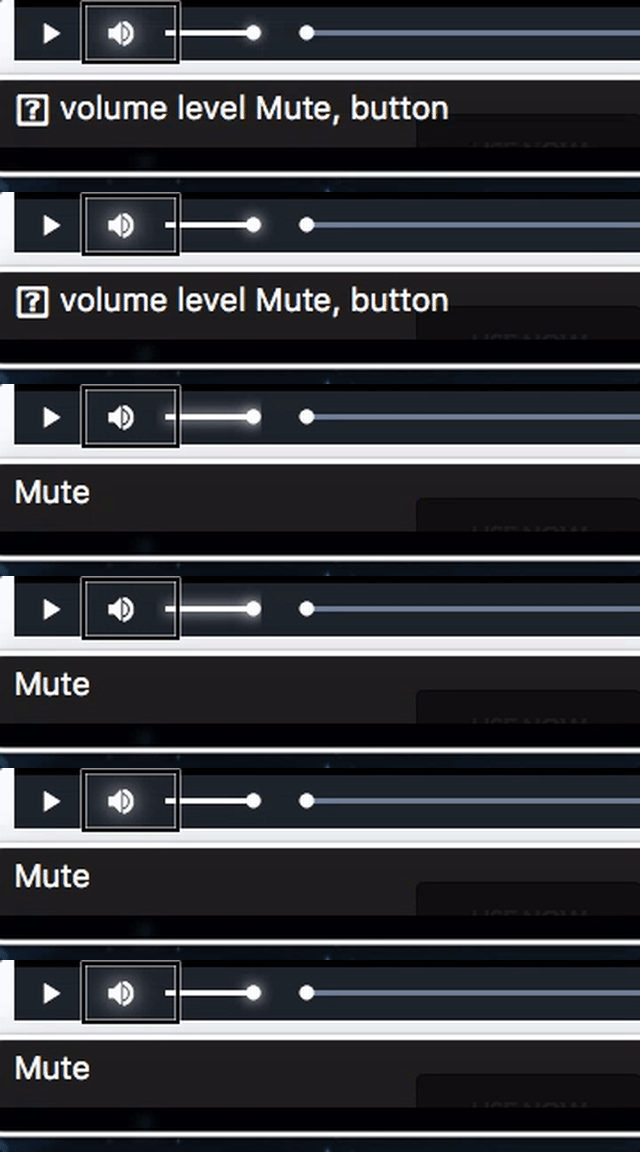
Now let's talk about how screen reader accessibility broke in Video.js 5. First VolumeMenuButton replaced MuteToggle and VolumeControl on the ControlBar. VolumeMenuButton was set to mimic MuteToggle when clicked. It would also show the VolumeControl on mouseover or focus. This was a problem because a VolumeControl was a now a child of a button, and buttons should not contain other controls. To the screen reader and to the DOM there are two MuteToggle button controls. When visually there is a VolumeControl and a MuteToggle. Below you can see a gif of this behavior in action :
macOS `VoiceOver` Before The Fix
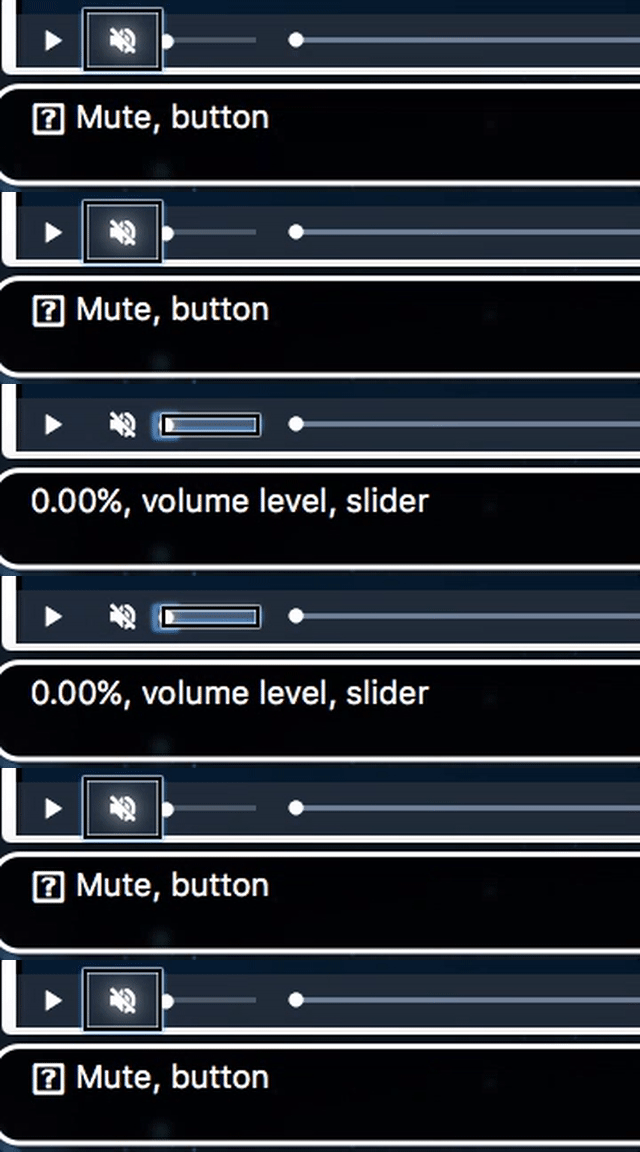
The solution to this problem was to use a regular div to house the MuteToggle and VolumeControl. This regular div would have no role or control text so that it would be invisible to a screen reader. From that point forward we just needed to mimic the old UI. For those who are wondering, this new Component is called the VolumePanel. See the new behavior in a gif below:
macOS `VoiceOver` After The Fix
Outlines
Another big accessibility fix for controls comes from the removal of one small css rule:
outline: none;
Why did we do it? With feedback from the community and external resources, we learned that outlines should always be on. Without outlines there is no visual indication of keyboard focus on control elements and without that, keyboard users who are not visually impaired have a hard time using the controls.
Wrap up
Hopefully this post has given you some insight into making a web application accessible. If you find any issues or have any suggestions for our accessibility or in general feel free to contribute to Video.js.
If you want to keep up to date on the current state of accessibility work see the a11y label on PRs and issues.
Resources
Here are some popular screen readers that are actually used in the wild:
Note: Advanced plugins are being introduced in Video.js 6.0 and are only supported from that version forward.
If you've been a Video.js user for a while, you're likely familiar with the concept of plugins: functions that become methods of any player you create. If you're not familiar with Video.js plugins, we have a comprehensive plugins guide available.
These plugins - which we'll call basic plugins - are lightweight and offer complete control of the player. That's really useful and it isn't changing - existing plugins should continue to work!
But what if you want a richer set of features? Or more guidance on how to structure your plugin? Or more tools out of the box that help manage complex plugin-rich players?
Well, until Video.js 6.0, you had to figure things out on your own.
Introducing Advanced Plugins
One of Video.js' strengths is its rich ecosystem of plugins; so, in the last few months, we wanted to focus our efforts on improving the plugin author experience.
While projects like the plugin generator and videojs-spellbook make becoming a plugin author easier than ever, the Video.js team thought it was important to provide a foundational API and set of conventions on which the future of Video.js plugins could be built.
Our solution is advanced plugins.
Advanced Plugins are Component-Like
One of the design goals for advanced plugins was to provide an API that was reminiscent of the existing components system. We achieved this in a number of ways.
At the lowest level, this included a name change for the plugin registration function from videojs.plugin to videojs.registerPlugin (taking a naming cue from videojs.registerComponent and videojs.registerTech).
Beyond a simple registration method name change, advanced plugins are class-based. A trivial example of an advanced plugin might look something like this:
This plugin can be initialized in the same way as a basic plugin - via a player method whose name matches the registered name of the plugin.
In the case of advanced plugins, this method is a factory function, which instantiates the plugin class and returns an instance.
It's useful to know that the player method that is created will always be a function. If a player already has an instance of an advanced plugin, its associated method will simply return the pre-existing instance rather than re-initialize it:
The helloWorld method will return this plugin object until it is disposed - after which it will create a new plugin instance again.
Events
Similar to components, advanced plugins can listen to and trigger events via the on, one, off, and trigger methods.
This provides a loosely coupled communication channel for plugins and other objects (components, players, etc) to manage their own state and respond to changes in the state of one another.
Additional Event Data
The Video.js event system allows additional data to be passed to listeners as a second argument when triggering events (the first argument is the event object itself).
Plugin events pass a consistent set of properties in this object (including any custom properties passed to trigger):
instance: The plugin instance, which triggered the event.
name: The name of the plugin as a string (e.g. 'helloWorld').
plugin: The plugin class/constructor function (e.g. HelloWorld).
For example, a listener for an event on a plugin can expect something like this:
Another similarity between plugins and components is the concept of a lifecycle - more specifically, setup and teardown processes.
We get the setup feature as a side effect of normal object creation in JavaScript, but we are left to our own devices when it comes to object destruction and ensuring that references between objects are cleaned up to avoid leaking memory.
Video.js components have long had a dispose method and event that deal with removing a component from the DOM and memory. Advanced plugins have the same feature:
const player =videojs('my-player');const firstInstance = player.helloWorld();// Logs: 'true'
videojs.log(firstInstance === player.helloWorld());
firstInstance.on('dispose',()=> videojs.log('disposing a helloWorld instance'));// Logs: 'disposing a helloWorld instance'
firstInstance.dispose();const secondInstance = player.helloWorld();// Logs: 'false'
videojs.log(firstInstance === secondInstance);
The pluginsetup Event
Plugins do have one lifecycle feature that components do not: the pluginsetup event.
This event is triggered on a player when a plugin is initialized on it:
const player =videojs('my-player');
player.on('pluginsetup',(e, hash)=>{if(hash.name ==='helloWorld'){
videojs.log('A helloWorld instance was created!');}});// Logs: 'A helloWorld instance was created!'
player.helloWorld();
React-inspired Statefulness
One of the exciting additions in Video.js for both advanced plugins and components is React-inspired statefulness. Essentially, this means that all plugin objects and component objects have a state property, which is a plain object that can be used to store variable state for that object. Then, there is a setState method that updates this object and triggers a statechanged event.
This system allows plugins and components to use their evented nature to communicate in-memory state changes through a consistent API:
// A static property of the constructor can be used to pre-populate state // for all instances.
HelloWorld.defaultState ={color:'red'};const player =videojs('my-player');const instance = player.helloWorld();
instance.on('statechanged',(e)=>{const{color}= e.changes;if(color){
videojs.log(`The helloWorld color changed from "${color.from}" to "${color.to}"!`);}});// Logs: 'The helloWorld color changed from "red" to "blue"!'
instance.setState({color:'blue'});
Player Plugin Awareness
Finally, we couldn't add new plugin infrastructure without working on one of the more pernicious problems of managing complex combinations of plugins: the player can't report which plugins it has initialized - or not. To this end, the player has two new methods: hasPlugin and usingPlugin. These methods work for both types of plugins.
The hasPlugin Method
This method reports whether a plugin matching a given name is available on the player:
const player =videojs('my-player');// Logs: 'true'
videojs.log(player.hasPlugin('helloWorld'));// Logs: 'false'
videojs.log(player.hasPlugin('fooBar'));
This method ignores whether or not the plugin has been initialized and merely reports whether or not it has been registered.
The usingPlugin Method
This method reports not only whether a plugin is available on a player, but whether it is currently active on the player:
const player =videojs('my-player');// Logs: 'false'
videojs.log(player.usingPlugin('helloWorld'));
player.helloWorld();// Logs: 'true'
videojs.log(player.usingPlugin('helloWorld'));
One caveat to note here. While this works for both types of plugins, only advanced plugins can change this value more than once. A basic plugin has no built-in lifecycle or events; so, it's not possible to determine whether one has been "disposed".
Go Forth and Code
We hope these additions and improvements to the plugin architecture will make writing Video.js plugins more pleasurable and remove some of the low-level legwork involved in ensuring plugins aren't creating memory leaks and other problems.
The design of advanced plugins is such that we can add features as 6.0 matures and we get more community feedback. As always, we strongly encourage our users to give back to the Video.js project in whatever way they can.
The first Release Candidate for 6.0 has been released
Last week, we began wrapping up months of effort to make Video.js even better with the first Release Candidate (RC) of Video.js 6.0. In order to make it better, however, we had to make a few breaking changes and we also made a lot of improvements under the hood.
How to try it out
The RC is now published on npm under the beta tag with verion 6.0.0-RC.0.
npm install video.js@beta
Please try it out and let us know how it is on GitHub.
What to look forward to
We're finally removing Flash from core as outlined in a previous post.
Plugins are being updated to a React-inspired component architecture. The old style is staying around.
We're recommitting to accessiblity by fixing the accessibilty of our volume control and bringing back outlines!
Middleware. A brand new feature to interface between Video.js's techs and the player.
Feature Spotlights
Over the coming weeks, we'll post feature spotlights talking about the big things that are happening.
We might also revisit some old features.